Users
Portal users are the external users who have access to your portal. They have no Notion account - they sign in to your portal with a one-time code sent to their email.
You can manage portal users in two ways: directly from the portal (Manual mode), or by syncing them with a Notion database. Both are configured from Admin > Users.
User roles
Each portal user has one of two roles:
- Member - can access the portal and interact with the tabs and records they have been given access to.
- Admin - has the same access as a member, plus access to the Admin panel to configure the portal.
Manual mode (default)
With no Notion database connected, everything is handled from the portal.
To add a user, go to Admin > Users, click Create user, and enter their email. The user is added immediately and can sign in.
You can also let visitors create their own account by enabling Allow signups in General settings. See the Authentication doc for the full sign-in and signup flow.
Synced with Notion
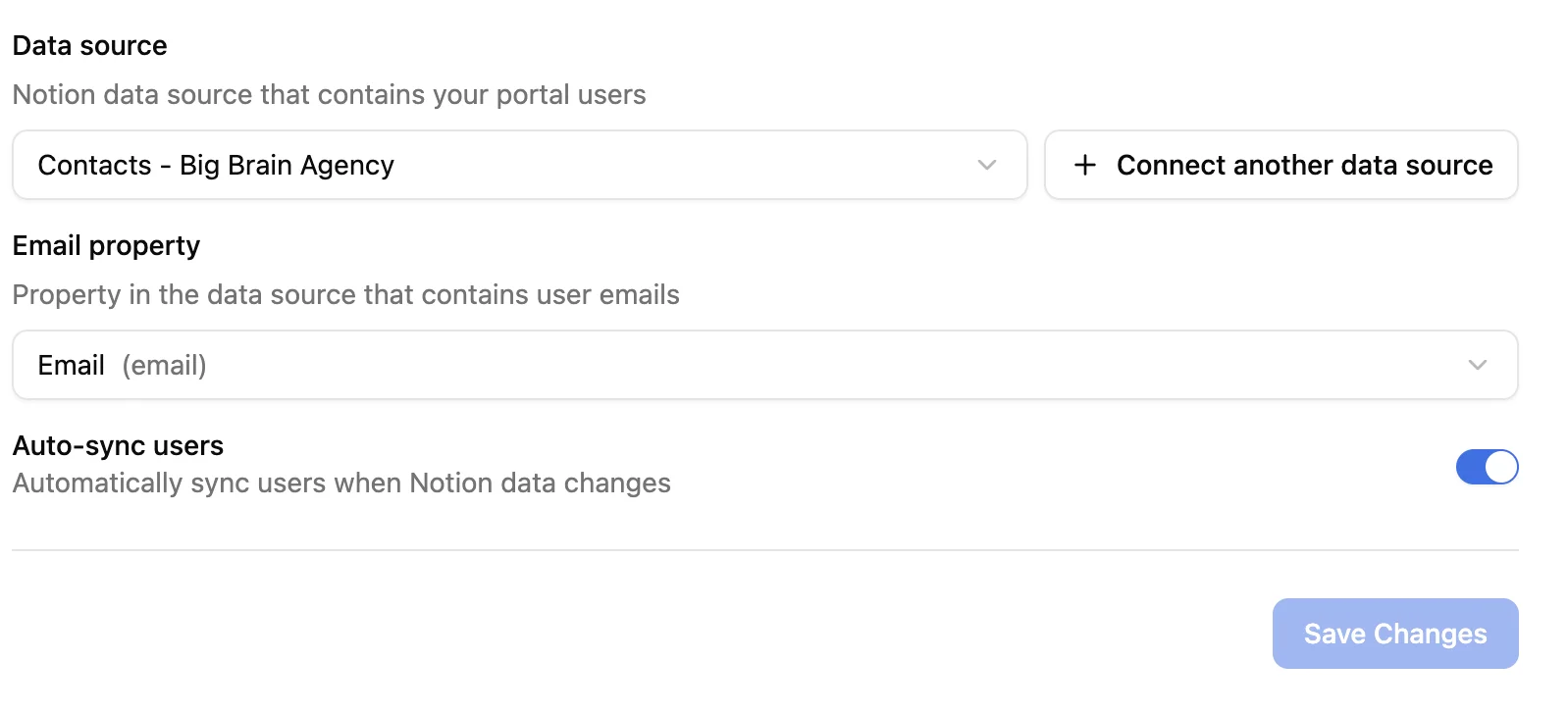
Source your portal users from a Notion database. The database must contain a property (title, email, or text type) that holds each user’s email address.
Note: Make sure the email addresses in your Notion database are correctly formatted (e.g. user@example.com). Incorrectly formatted emails will prevent users from being synced and logging in.
To connect a database, go to Admin > Users > Sync from Notion:
- Select the Notion database that contains your users (or click **Connect another **to give access to another Notion database)
- Map the email property.
- Connect and sync.
Sync options
Once a database is connected, choose how it stays in sync:
- Auto-sync - any change in the Notion database (add, edit, or delete a row) is reflected in the portal automatically. Users you add from the portal (via Create user or self-signup) are also pushed to the Notion database as a new row, with only the email filled in.
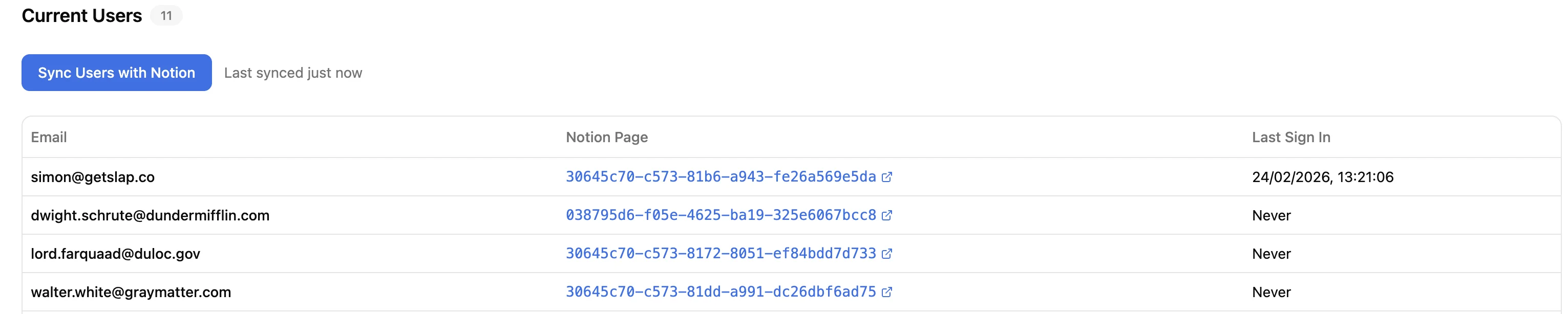
- Manual sync - use the Sync now button to push or pull changes whenever you want. Users you add from the portal show as Pending until you click Sync now.

Status badges
When a Notion database is connected, each user in the table shows a status badge:
- Synced with Notion - the user is mapped to a row in the connected Notion database.
- Pending - the user was added from the portal (via Create user or self-signup) and is waiting for the next sync to push them to Notion. Once the sync runs, the badge switches to Synced with Notion.
Badges don’t appear in Manual mode since everything is handled in the portal only.

Deleting synced users
Synced with Notion users can’t be deleted from the portal UI. To revoke their access, delete the corresponding row in the connected Notion database. This avoids orphaned records on the Notion side.
Pending users can be deleted directly from the portal UI.
How portal users log in
Portal users sign in with their email address. SlapPortal sends them a one-time code to authenticate - no password to set up or remember.
See the Authentication doc for the full sign-in flow, the Allow signups setting, and how to make tabs accessible to anonymous visitors.
Pricing
Pricing is based on active users: users who have logged into the portal at least once in the last 30 days. Users who have not logged in during that period do not count toward your plan.
Portal users are entirely separate from Notion users and guests. They have no Notion account and no access to your Notion workspace directly. This means they do not count toward Notion’s guest limits, regardless of how many portal users you have.