Automatically create contacts (2-databases mode)
If you use Slap in 2-databases mode , you can automatically create a new contact whenever an email thread arrives in Notion and no matching contact exists yet.
Limitations with multiple recipients
Prerequisites
Make sure you have set up a sync in 2-databases mode .
Option 1 - Automatic creation with Notion automation
This method automatically creates contacts using a standard Notion automation on a filtered view of your Emails database.
Step 1 — Create a filtered view that shows emails thread without a contact
Create a new view on your Emails database.
- Filter: Contact is empty
This view will only include email threads that have not been linked to any contact yet. You don’t need to show that view to the Notion users, it is only required for the Automation to work correctly.
Step 2 — Build the Notion automation to create contacts
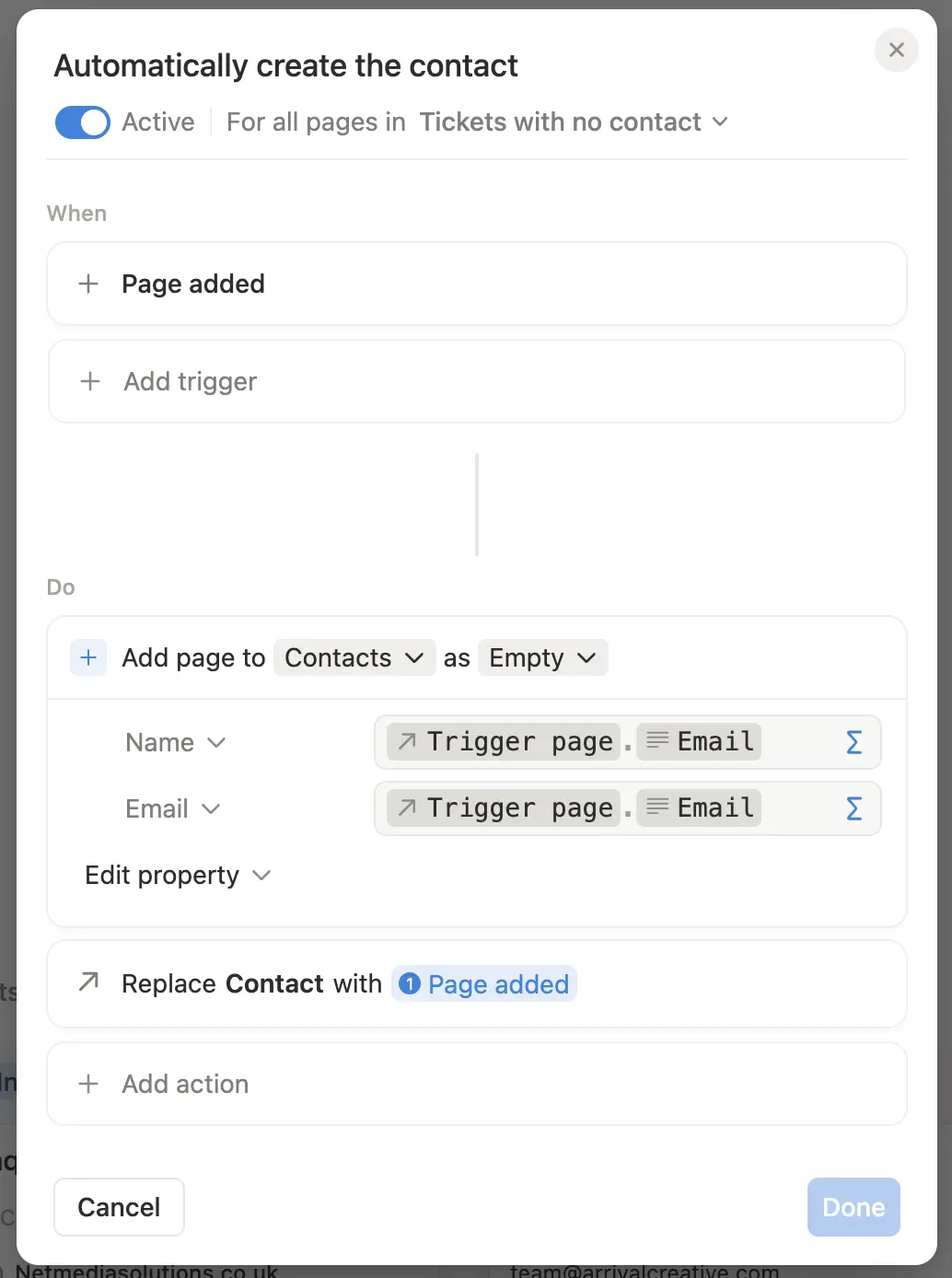
Create an automation on the view from Step 1.
Trigger:
- When a page is added to this view
Actions:
- Create page in Contacts
- Set Name: choose how you want to name the new contact. For example, use the sender email.
- Set Email: map from the Emails → sender email property
- Update the triggering Email page
- Set Contact: link it to the Contact created in step 1
Result:
- Every time a new email thread page appears without a contact, Notion will
- Create a new Contact
- Set the name and email on that contact
- Associate the contact with the email thread page
Option 2 — Manual creation with a button
This method is more manual as you need to click a button to create each contact, but it gives you more control to make corrections and decide which contacts should be created.
Step 1 — Create a button on the Emails database
Add a button property to your Emails database.
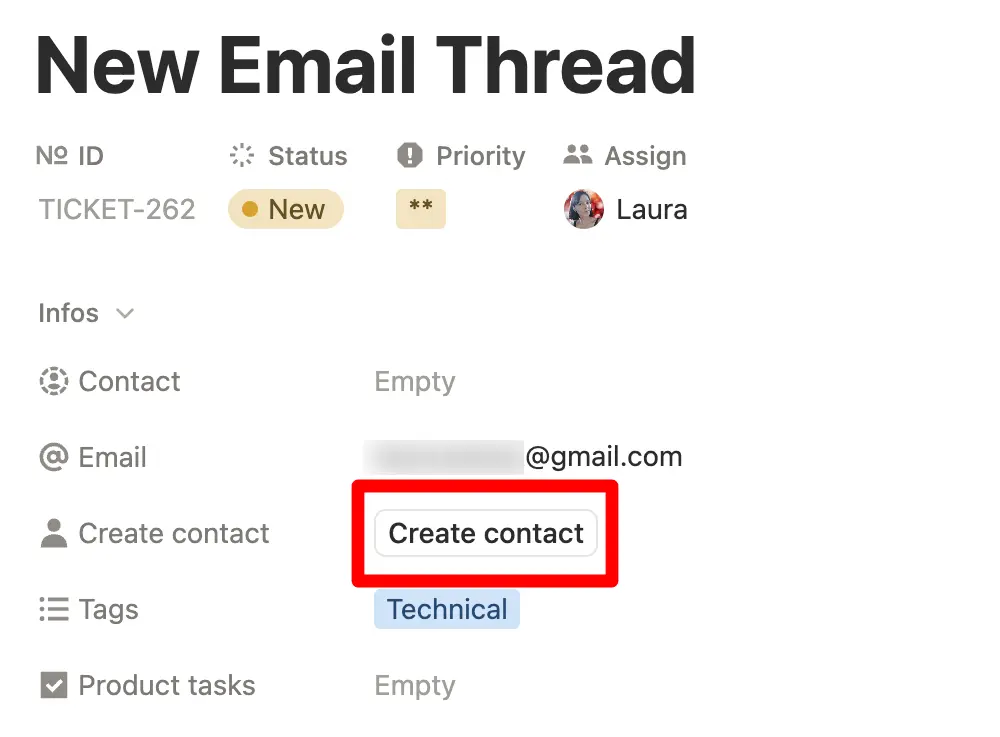
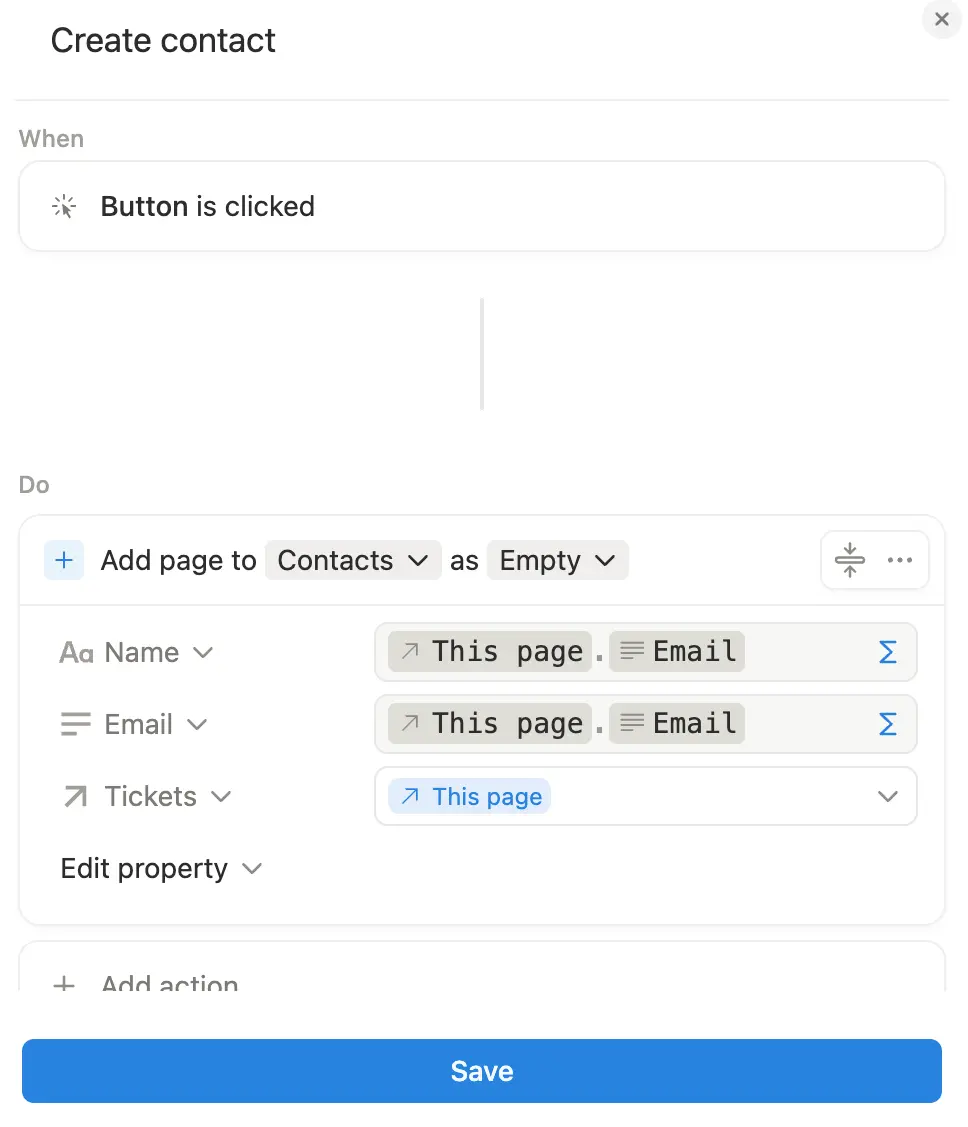
Configure the button to:
- Create page in Contacts
- Set Name: map from the Emails → Email adresses property
- Set Email: map from the Emails → Email adresses property
- Link the Contact to the Email page
- Set Email: link it to the current email page
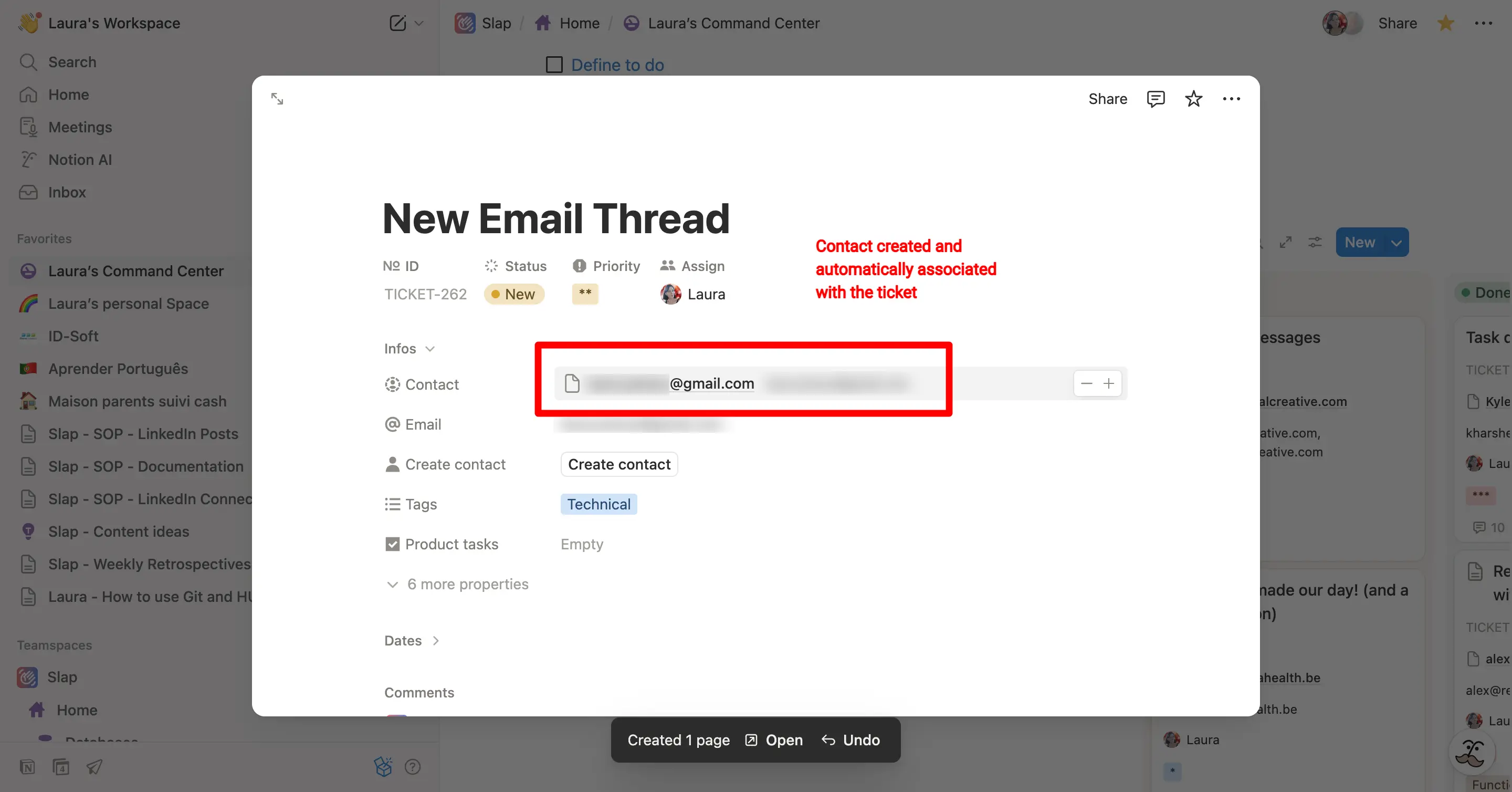
Result:
- When you click the button on an email thread page, Notion will
- Create a new Contact
- Set the name and email based on the email addresses property
- Associate the contact with the email thread page
Step 2 — Add visual warning (optional)
To easily identify emails without contacts, you can use color formatting.
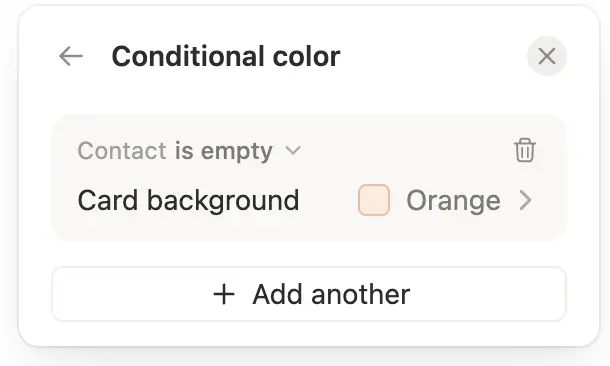
On your Emails database view, add conditional formatting to display email threads without a contact in orange.
- If Contact is empty, set background color to orange
This makes it easy to spot emails that still need a contact created.